How do I get my Epson printer to scan to my computer?
Updated

Install Epson ScanSmart (or Epson Scan 2) on the computer from Epson's support and driver downloads, then connect the printer the same way it prints — a USB cable, or join it to the same Wi-Fi network as the computer. Open ScanSmart, place the page on the glass, pick the scanner, and scan. If nothing shows up, reinstall the Epson software and check the firewall.
- Scan software never installed ScanSmart / Scan 2 missing
- Printer and PC on different networks the Wi-Fi mismatch
- Firewall blocking the scan service
- Old Event Manager vs new ScanSmart wrong app for the model
- Scan-to-PC not enabled on the printer a smaller gotcha
Start with the part people skip: the software. A printer that prints over Wi-Fi has a working driver, but printing and scanning use different software, so the scanner can stay invisible until you add the scan app. Epson's current tool is Epson ScanSmart, with Epson Scan 2 as the driver underneath it; per Epson's support site, you download whichever your operating system needs and install it on the computer, not the printer. Older help articles name Epson Event Manager — on current machines ScanSmart has replaced it, which is why following a dated guide often leads nowhere.
This is the fix for most "it prints but won't scan" cases.
Then confirm the hardware can actually scan — most of these Epson machines are all-in-ones, and that is the point. The entry EcoTank ET-2803 carries a
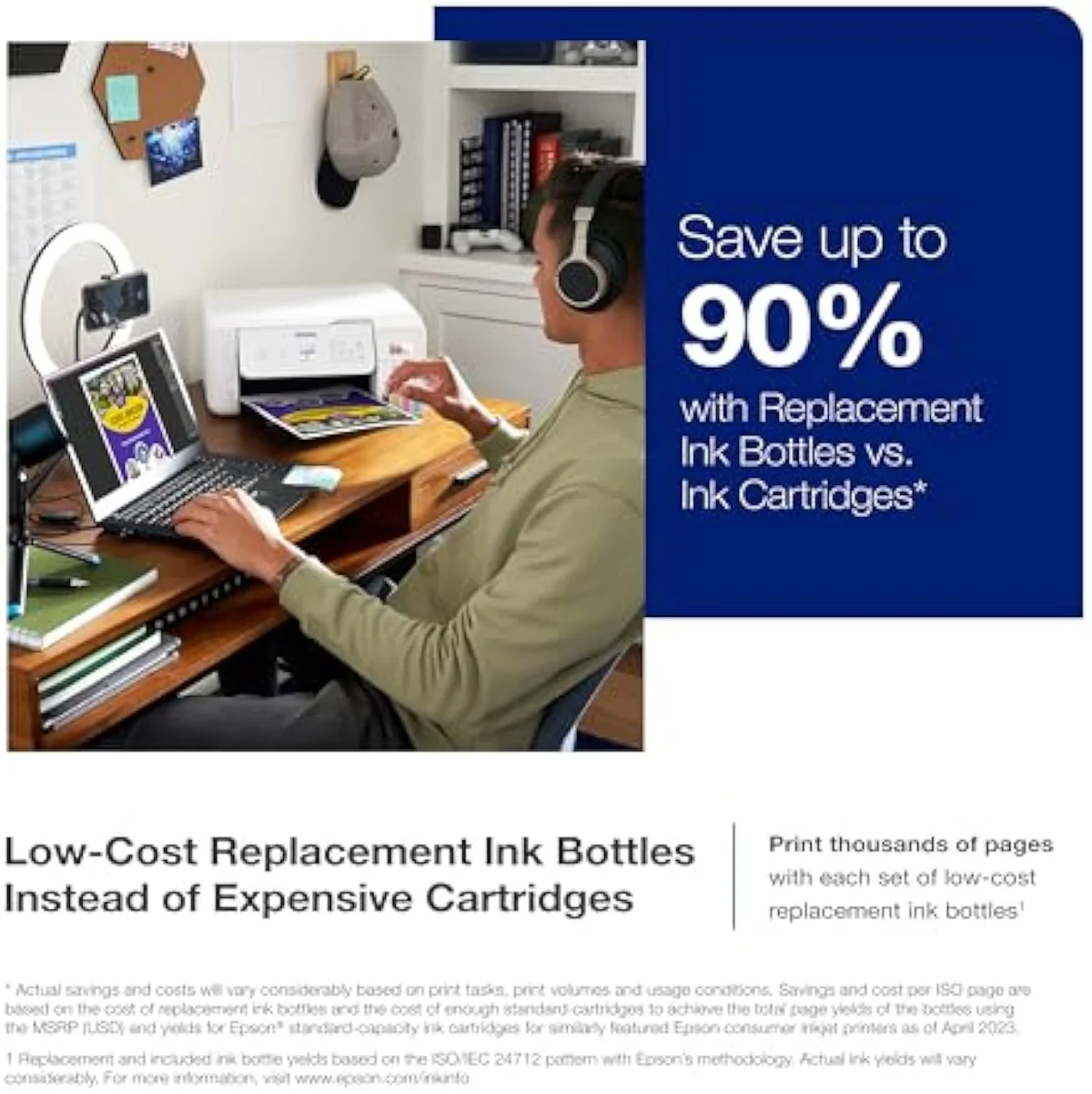
Flatbed lid
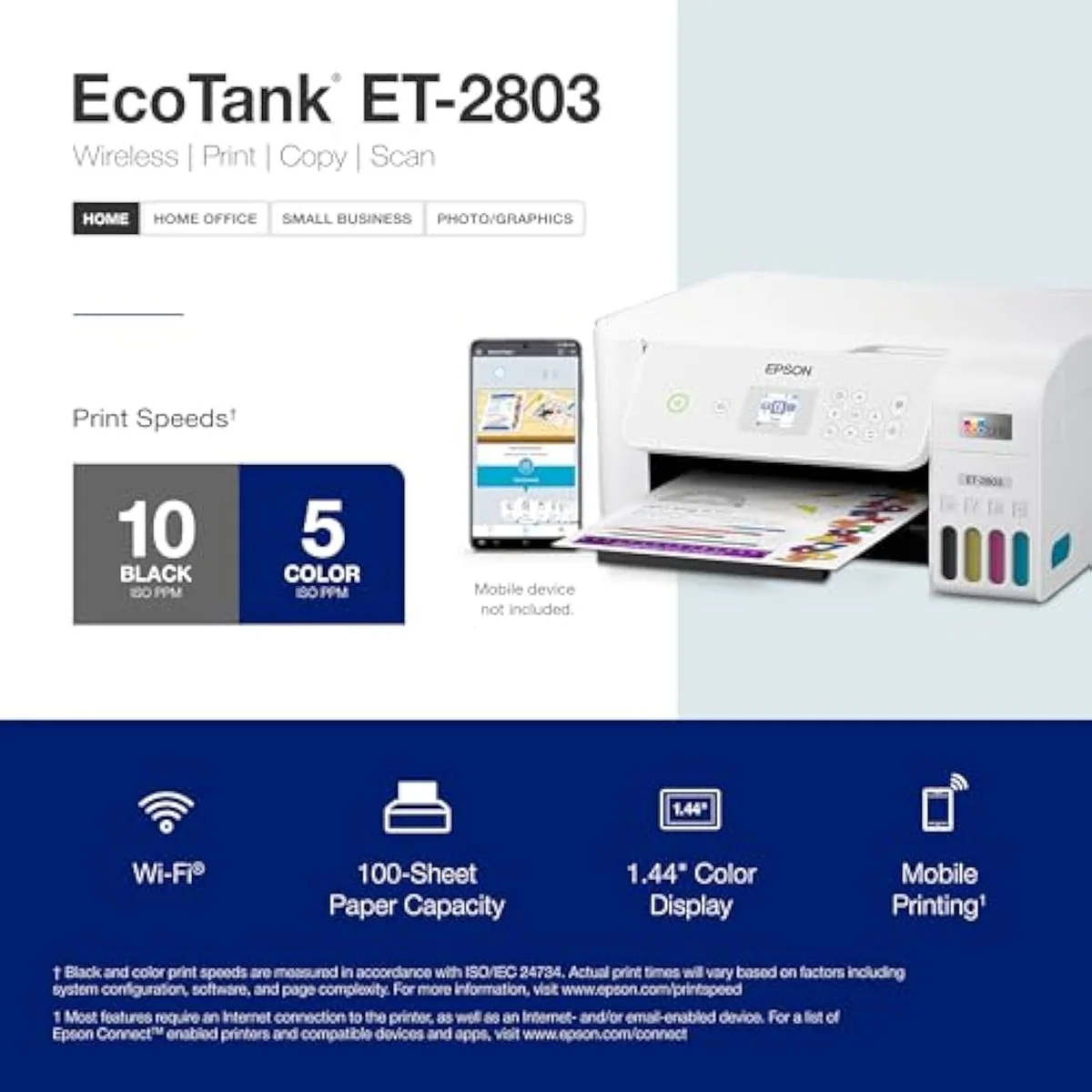
Control panel
Connection is the third piece, and it mirrors how the printer already works. A USB cable is the most reliable route — plug printer to computer, and ScanSmart usually finds the scanner with no network involved. For wireless, the rule is simple: the printer and the computer must be on the same Wi-Fi network. Many cheaper Epson units join only the 2.4GHz band, so a phone or computer parked on a 5GHz band can fail to see the scanner even though both say they are online. We walk through first-run connection in our inkjet printers setup and maintenance guide.
If the scanner still does not appear, the fixes are short and in order. Reinstall ScanSmart and Epson Scan 2 to repair a half-finished setup. Check that your firewall or security suite is not blocking the Epson scan service — a frequent silent culprit on Windows. Confirm the printer's own Scan to Computer option is enabled in its settings. And on a wireless setup, re-run the network wizard to rejoin the right band. Work down that list and almost every Epson scan problem clears; the full maintenance routine lives in our inkjet printers evidence hub.
How to scan documents with an Epson printer wirelessly?
First put the printer and the computer on the same Wi-Fi network — wireless scanning fails the moment they sit on different bands or networks. Then open Epson ScanSmart on the computer, choose the networked printer, and scan; or start at the printer, tap Scan then Scan to Computer, and pick the PC. No USB cable is needed once both devices share one network.
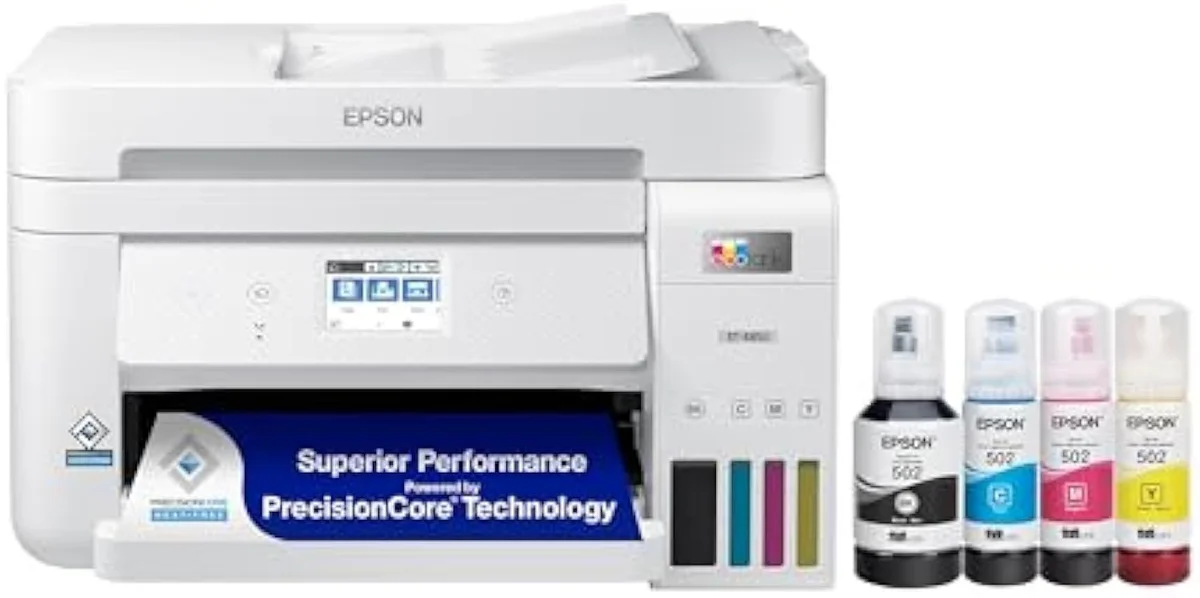
Honestly, the network mismatch trips up more people than any broken part. A computer on a 5GHz band and a budget Epson stuck on 2.4GHz are technically on the same router yet cannot find each other for scanning, so the first move is to confirm both sit on one band. Once they do, wireless scanning runs in two directions: push from the computer in ScanSmart by selecting the networked scanner, or pull from the printer panel with Scan to Computer, which sends the file straight to the PC you choose. Epson's mobile route adds a third path — the ET-4850 lists
How to scan on an Epson printer scanner?
Lift the lid, lay the document face-down on the flatbed glass against the corner arrow, and close it. On a model with an automatic document feeder you can instead drop a stack into the ADF for multi-page jobs. Start the scan from Epson ScanSmart on the computer, or from the printer panel using the Scan button — the same flatbed handles copy jobs too.
The placement detail matters more than it sounds. Aligning the page to the corner arrow on the glass keeps the scan square and stops Epson's software cropping the edge off a document. Set the resolution to the job, too: according to Epson's ScanSmart guidance, 200-300 dpi is right for plain text documents, while photos want 600 dpi or higher — scanning everything at maximum just makes slow, bloated files. For single sheets and photos the flatbed is the tool; for a multi-page contract, the automatic document feeder on the office models pulls each sheet through on its own. One honest limit on the cheaper ADF units: the ET-4850's feeder is single-sided, and an owner notes

Document feeder

Flatbed glass
How to scan using Epson WF-2960?
The WorkForce WF-2960 is an all-in-one, so it scans the same way: install Epson ScanSmart on the computer, connect over Wi-Fi, Ethernet, or USB, and scan from ScanSmart or the WF-2960 touchscreen. Its automatic document feeder lets you scan or copy several pages without reloading the glass — handy for the home-office paperwork this model is built around.
The WF-2960 leans office, so its scan workflow rewards the document feeder. Drop a stack of pages into the ADF, choose Scan to Computer on the touchscreen or pick the scanner in ScanSmart, and it works through the pile without you babysitting the glass — the right tool for the contracts, forms and receipts a home office runs. It also offers a wired Ethernet jack as well as Wi-Fi, which is the quiet fix when wireless scanning will not cooperate: a network cable sidesteps the band-mismatch problem entirely. For document-heavy homes weighing the WorkForce cartridge line against bottle-ink tanks, our best supertank printers roundup lines up the alternatives.
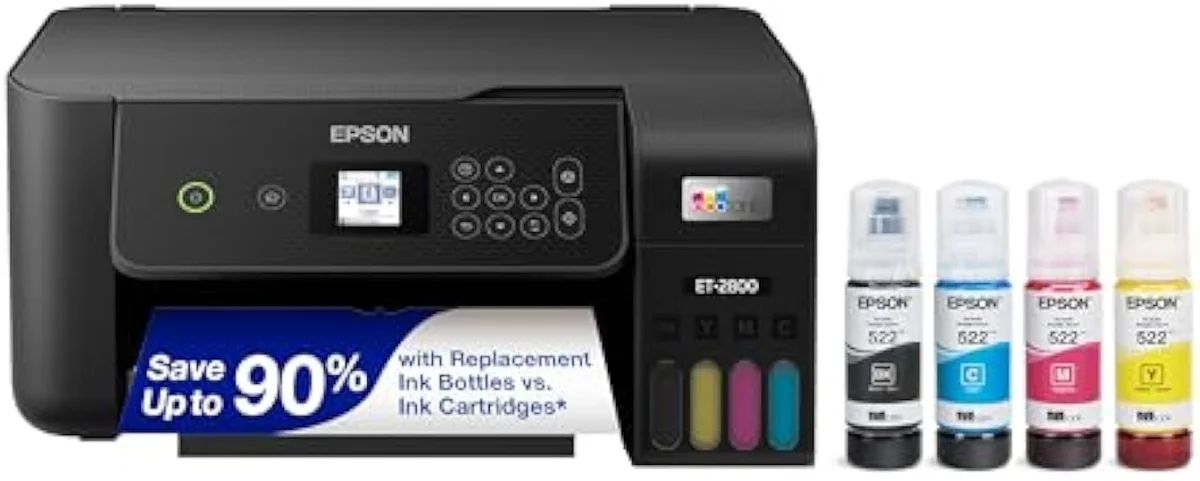
How to scan to your computer on an Epson printer?
The software decides this, not the hardware. Epson ScanSmart is the current scan app and Epson Scan 2 is the underlying driver — install one of them from epson.com so the computer can see the scanner. Older guides name Epson Event Manager; on current machines ScanSmart replaces it. With the app installed and the printer connected, your scans land on the PC in one click.
Here's the thing: the destination on the computer is set inside ScanSmart, so a scan that "disappears" usually just went to a folder you did not check. Open ScanSmart, run a test scan, and the app shows the preview and the save location before it writes the file — set that to a folder you will remember. ScanSmart also exports straight to searchable PDF or email, which is why it replaced the older Event Manager tool. Reliability on these machines is mostly a software story rather than a scanner one; Consumer Reports tracks inkjet reliability and owner satisfaction across brands, and scan-software friction is a recurring Epson complaint that a clean reinstall usually settles. We collect the per-model setup notes in our Epson EcoTank ET-2803 review.
So the whole thing comes down to software first, then connection.
Add it up and an Epson scan problem has a clean shape. The scanner in the machine works — these are all-in-ones built to scan, copy and, on the office models, feed a stack of pages — so the fault is almost always the software or the link to the computer. Install Epson ScanSmart or Epson Scan 2 from Epson's driver downloads, connect by USB or put both devices on the same Wi-Fi network, and scan from the app or the printer's Scan to Computer button. When it still balks, the order is reinstall the software, clear the firewall, and re-check the connection. Epson does make this fiddlier than it should be — dated apps and 2.4GHz-only Wi-Fi are self-inflicted friction — but the steps above clear nearly every case, and the deeper routine lives in our inkjet printers evidence hub.
Get Our Top 3 Picks
Get our top 3 picks for your budget — one email, then only updates.
Only when something changes. Unsubscribe anytime.
Citations
- [1]"High-resolution flatbed scanner and a color display for easy document copying and navigation"https://www.amazon.com/dp/B0BHXNP6B1Captured June 3, 2026. Verified June 3, 2026.
- [2]"Epson EcoTank ET-4850 Wireless All-in-One Cartridge-Free Supertank with Scanner Copier, Fax, ADF and Ethernet"https://www.amazon.com/dp/B096N9JMXFCaptured June 4, 2026. Verified June 4, 2026.
- [3]"Offers mobile printing options, including the Epson Smart Panel App, Epson Email Print, Epson Remote Print, Epson Scan to Cloud, Apple AirPrint, Android Printing"https://www.amazon.com/dp/B096N9JMXFCaptured June 4, 2026. Verified June 4, 2026.
- [4]"it doesn't scan doublesided and also had some issues pulling not-perfect sized receipts."https://reddit.com/r/homeschool/comments/1msvlxe/do_you_use_the_epson_ecotank_printer_if_so_which/Captured June 4, 2026. Verified June 4, 2026.